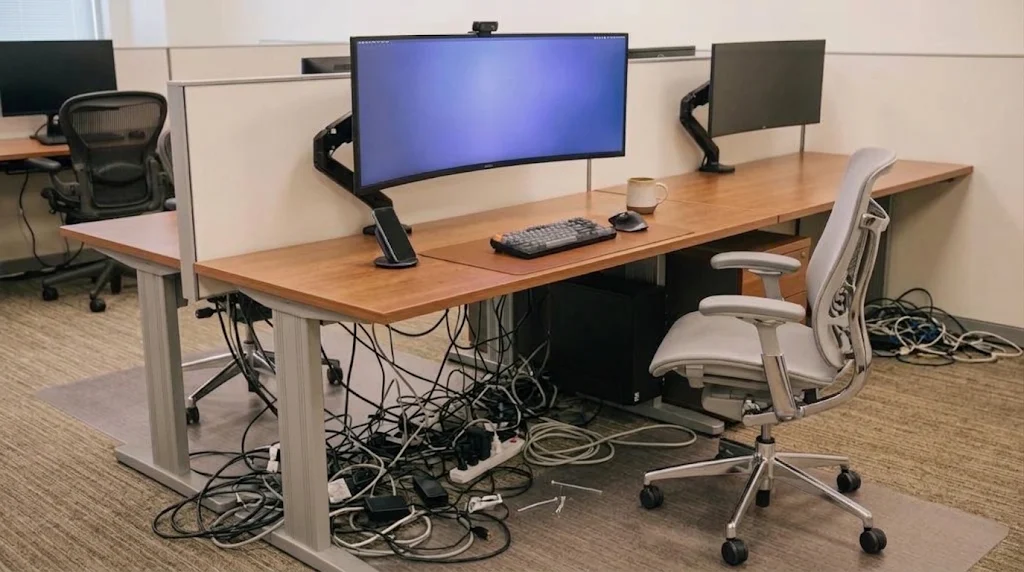
🔌 Have you ever searched the back of your desk in order to find a certain cable only to realize that you have no idea which cable corresponds to your computer, monitor or router? It often happens that when the cables look too alike, you start guessing which cable to use.
🏷️ Handwritten tags seem to be a simple solution, however the text printed there can be small and illegible, as well as inconsistent. A cable label maker helps to solve such problem because it enables to create easy-to-read labels for better cable management.
Whether you're setting up a home office, organizing network equipment, or managing the wires behind your TV, properly labeled cables can make everyday troubleshooting a lot less frustrating.
🏷️ Handwritten Wire Tags vs Printed Wire Labels: Which Is Better?
❌ Common Problems with Handwritten Cable Labels
Handwritten cable tags can work when you only have a few wires to organize. But once your setup gets more complicated, keeping everything easy to identify becomes a different story.
For one thing, writing on small tags isn't always easy. You might squeeze in a device name or a quick note, but the result is difficult to read, especially when you're labeling cables in a tight space behind a desk or entertainment center.
Consistency is another challenge. You might write "PC" on one tag and "Computer" on another, while someone else in your household uses completely different abbreviations. Before long, your labels become less helpful because there's no clear naming system.
Key Drawbacks of Handwritten Tags
- ❌ Hard-to-read text: Small tags don't leave much room for handwriting.
- ❌ Inconsistent naming: Different abbreviations and handwriting styles can make identification confusing.
- ❌ Difficult replacements: When a tag gets smudged, damaged, or needs replacing, you'll have to write it all over again.
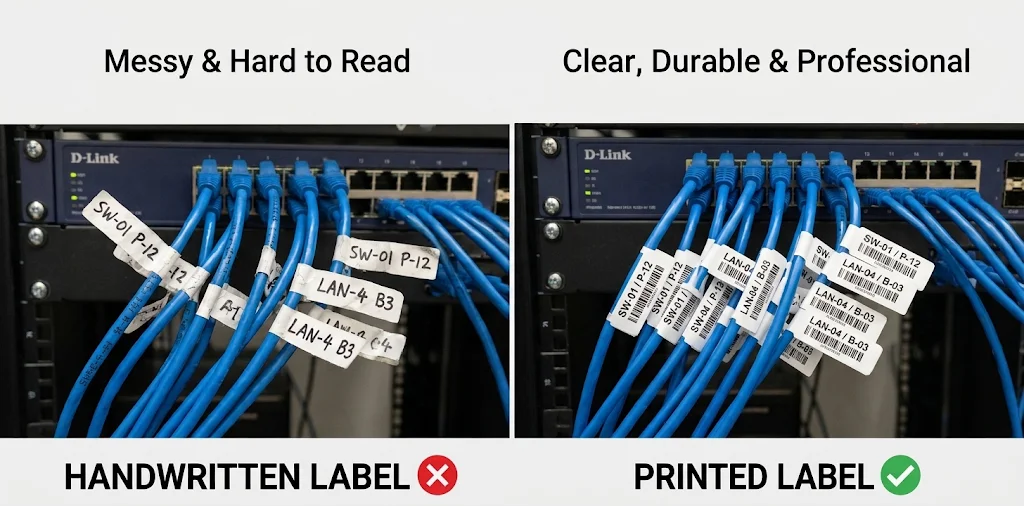
These may seem like small inconveniences, but they add up when you're dealing with multiple connections.
✅ Why Printed Wire Labels Make Cable Identification Easier
Printed wire labels make it easier to keep cable names clear and consistent. Rather than handwriting every tag, you can type out short descriptions and print them in the same style.
For example, labels like these can help you tell different cables apart:
Device Label Reference
| Device | Suggested Cable Label |
|---|---|
| Router | ROUTER |
| Monitor | MONITOR |
| Printer | PRINTER |
| Desktop computer | DESKTOP PC |
They also make it easier to maintain an organized setup over time. Added a new monitor? Replaced your router? Simply create another label that follows the same naming style as the rest.
The biggest advantage isn't just that printed labels look neater. It's that you spend less time trying to figure out what each cable does.
When something needs to be unplugged, moved, or checked, a clear label gives you a much better starting point.
⏱️ How Printed Wire Labels Save Time During Cable Troubleshooting
🌐 Identify Network and Ethernet Cables Faster
Your home network is one place where cable labels can make a noticeable difference. A typical setup might include a modem, router, desktop computer, smart TV, and several Ethernet connections. With multiple cables plugged into the same area, it isn't always obvious which one connects to which device.
Imagine your access to the internet abruptly stops working. You want to check the connection between your modem and router, but the cords are all tied behind a cupboard. You might have to follow every wire from one end to the other just to locate the correct connection without labels.
A few printed labels can make this process much simpler.
Network Cable Label Reference
| Cable Connection | Suggested Label |
|---|---|
| Modem connection | MODEM |
| Router connection | ROUTER |
| Desktop network connection | DESKTOP PC |
| First router LAN port | ROUTER-LAN1 |
| Office computer connection | OFFICE-PC |
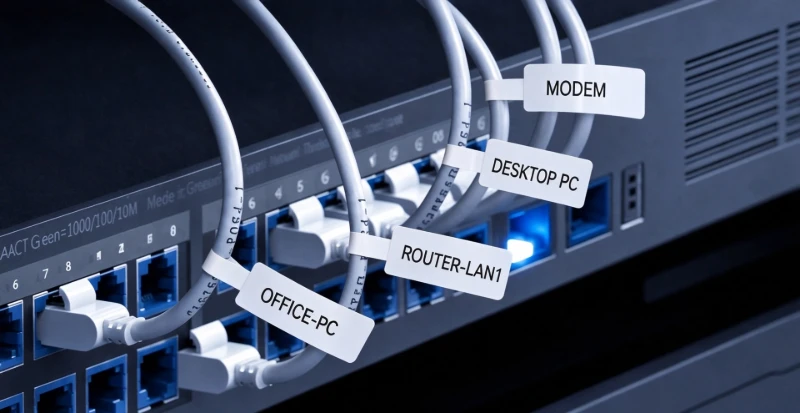
If you have several Ethernet connections, more specific labels like "ROUTER-LAN1" or "OFFICE-PC" can help you tell them apart.
The same idea comes in handy when replacing a router, rearranging network equipment, or reconnecting everything after a move. Instead of relying on memory, you have a clear reference for where each cable belongs.
🖥️ Keep Home Office and Desk Cables Organized
Think about everything plugged in around a home office desk: a laptop dock, external monitor, printer, desk lamp, phone charger, and maybe a few other accessories. When these devices share the same power strip or cable management tray, it can be surprisingly difficult to tell which wire belongs to what.
Now imagine needing to move your monitor or disconnect your printer to make room for something else. If the cables aren't labeled, you may end up unplugging the wrong one or spending several minutes tracing wires behind your desk.
This is where printed wire labels become especially useful.
Desk Cable Label Ideas
- 🖥️ MONITOR – For your external display.
- 💻 USB-C DOCK – For your laptop docking station.
- 🖨️ PRINTER – For your printer connection.
- 💡 DESK LAMP – For your desk lighting.
You can also label both ends of a cable when the connections are difficult to trace. This makes it easier to identify the same wire wherever it runs, particularly when cables disappear behind furniture or pass through a cable organizer.
It's a small habit that makes a real difference over time. Whether you're rearranging your workspace, replacing equipment, or troubleshooting a connection, you won't have to rely on memory to figure out which cable goes where.
🏷️ How to Make Clear Cable Labels with NIIMBOT N1
📏 Choose the Right Labels for Small Wires and Cables
When it comes to labeling cables, bigger isn't always better. Most wires have limited space for labels, so oversized stickers or long descriptions can make them look bulky and harder to manage.
For everyday cable organization, a short, easy-to-read label is usually all you need. The goal is to make each cable easy to recognize without adding unnecessary bulk. A simple device name or abbreviation can often tell you everything you need to know.
A few things are worth keeping in mind when creating your cable labels:
Label Design Tips
- ✅ Limit it and make it basic: Rather than trying to fit too much data onto a tiny label, use well-known device names or abbreviations.
- ✅ Stick to a regular naming pattern: Using the same structure over your network or home office setup helps to identify wires later.
- ✅ Choose a size suitable for your cables: For smaller cables and small areas where bigger labels might obstruct, compact labels are a sensible option.
Therefore, if you usually deal with many small cables, half-inch label maker is a perfect solution. It gives you a convenient way to create neat, easy-to-read labels without taking up too much space.
🖨️ Print Custom Cable Labels Easily with NIIMBOT N1
If you've ever spent several minutes trying to figure out which cable belongs to which device, you'll appreciate having a simpler way to keep everything organized. That's where a compact label maker like the NIIMBOT N1 comes in.
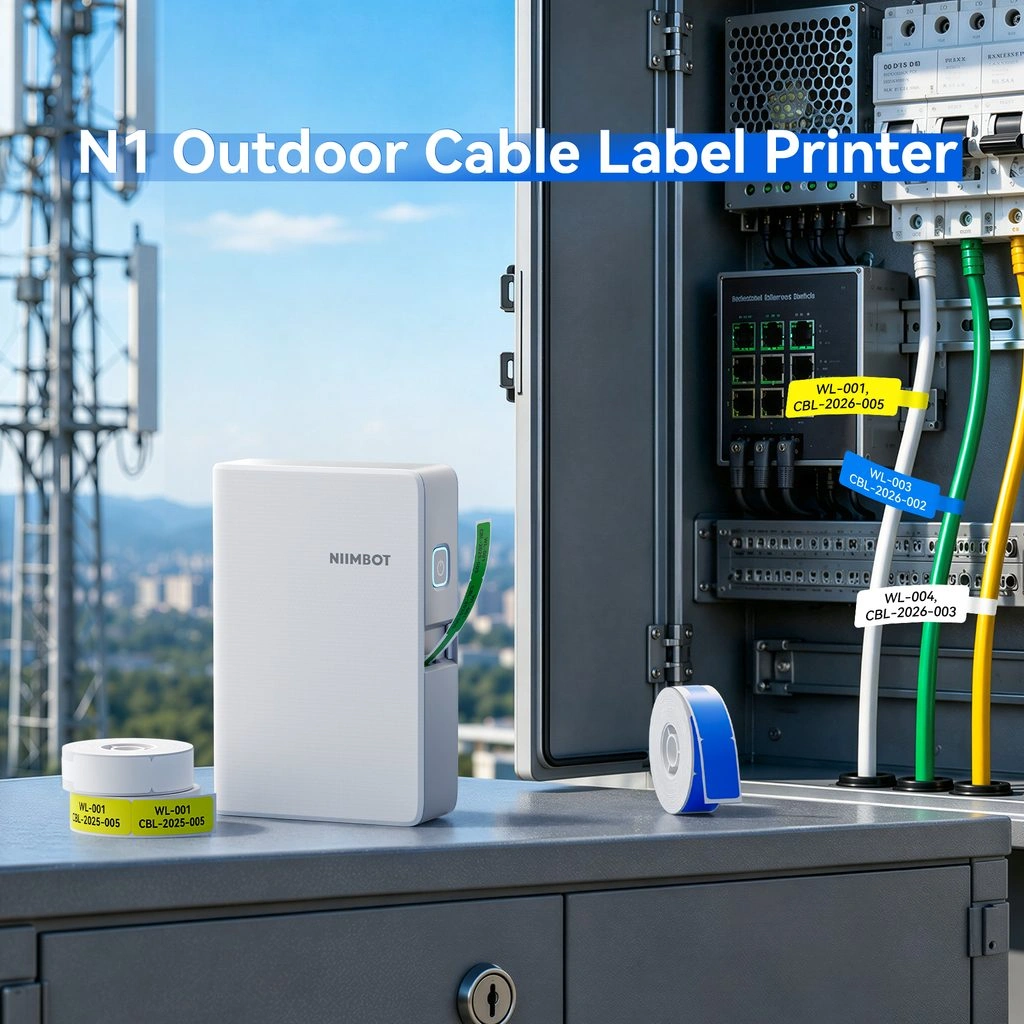
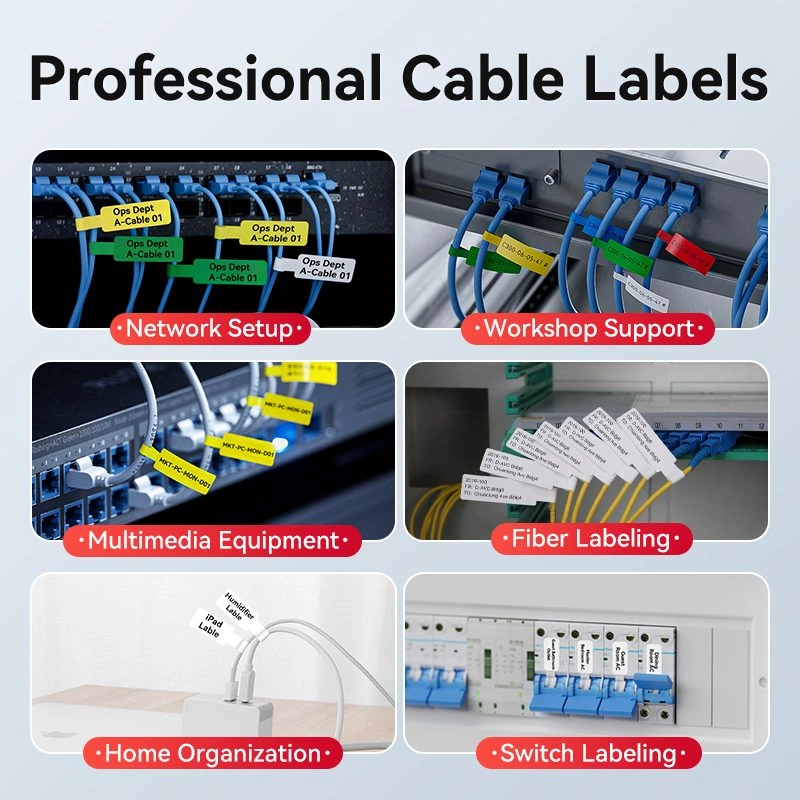
Designed for everyday labeling tasks, the N1 makes it easy to create small, clear labels for your cables without taking up too much space.
Here's what makes it a handy choice for cable labeling:
Why the NIIMBOT N1 Stands Out
- 🏷️ Compact Half-Inch Labels: The small-format labels are ideal for short cable identifiers, helping you mark individual wires without bulky stickers getting in the way. →
- 📶 Easy Bluetooth Printing: Connect the N1 to your phone, type in the text you need, and print. No computer or complicated setup required. →
- 🔖 Thermal Transfer Technology: Unlike ink that fades, our ribbon-based printing creates clear, durable labels that survive heat, moisture, and daily wear—so your cable organization stays neat and consistent for the long haul. →
It's also easy to keep your labeling up to date. Adding a new monitor, rearranging your home office, or replacing an old cable? Simply create a new label whenever you need one.
Whether you're organizing the cables under your desk, sorting out your home network, or tidying up connections around your entertainment center, the NIIMBOT N1 makes cable identification a little easier.