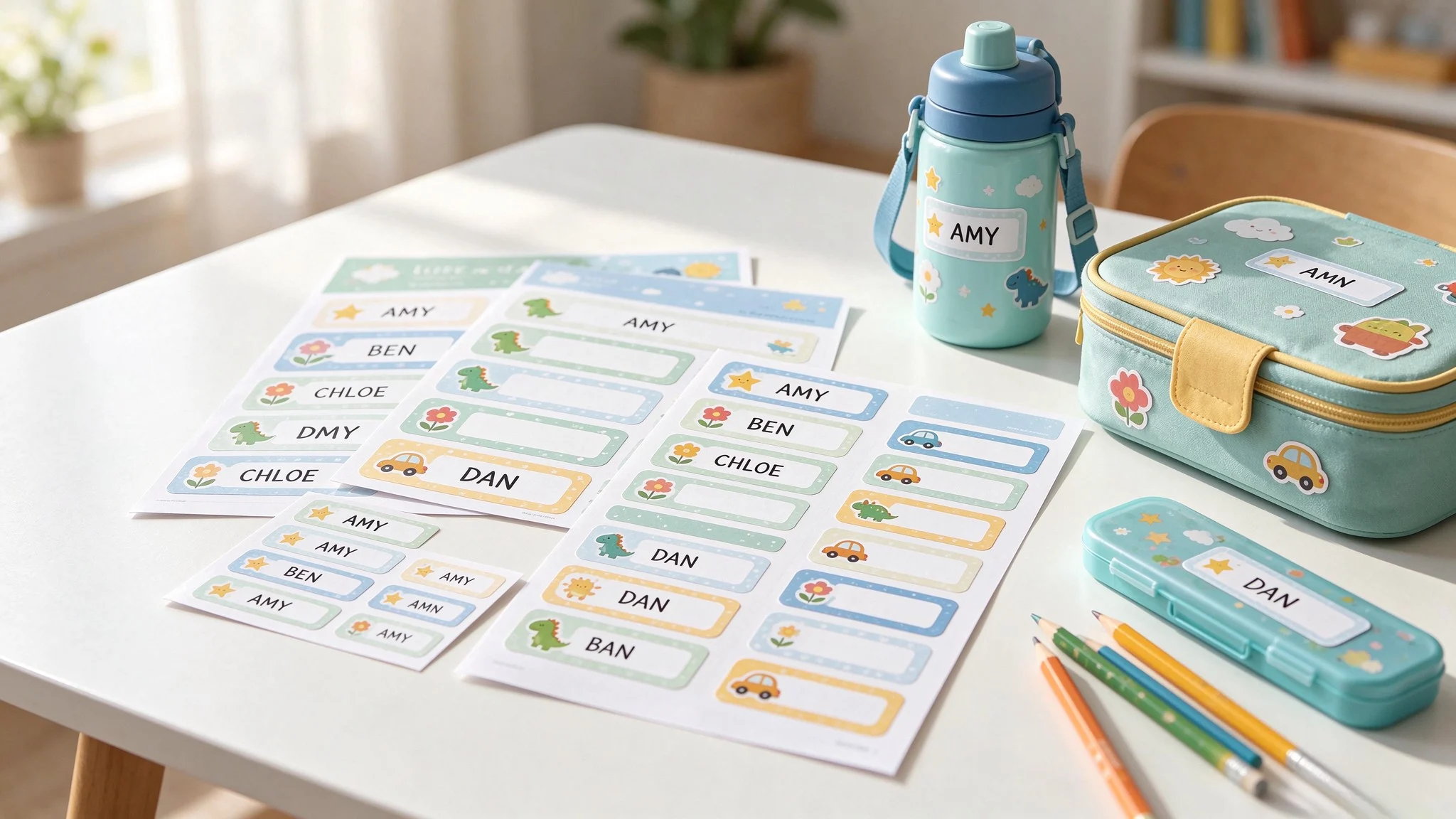
More and more people are starting to use labels. Whether in home or work environments, the usage rate of labels is increasing. Efficient label printing is essential for saving time and improving productivity. If you need to print labels regularly in your daily life or work, using a thermal label printer to print directly from word may be a good way. The following article will give you a detailed introduction on how to use a thermal label printer to print Word data and how to create labels in word.
The following is a summary of this step-by-step guide:
Preliminary preparation
1. Install Drivers and Software
Go to the NIIMBOT official website to download the driver and dedicated label editing software for the corresponding model.
Connect the printer to a computer or mobile phone to complete the driver installation.

2. Confirm the label paper specifications
Determine the label paper size you need in advance (such as 40x30mm), confirm the width, height and arrangement (such as 1 column per row). If you can't recognize the label size, it doesn't matter. All NIIMBOT label papers carry self-developed chips. Through RFID technology, as long as you put the label paper into the mini printer, the NIIMBOT APP will automatically display the model and size of the label paper, and you don't have to worry about not understanding the label paper model.

Word Document Setup
(quoted from labelmaker)
1. Open Microsoft Word
Go to the "Mailings" section in the menu at the top of the Word window.

2. Click "Labels"
In the "Mailings" section, click "Labels". A window will open where you can customize the label settings.

3. Select a vendor
Click "Options" and select a category under "Label Vendors". Here we will use the Avery US Letter format because it is a commonly used label format.

4. Select a template
Select a template, also known as "Product Number". In this example, we use the most commonly used template "5160 Address Label". Click "OK".

If you can't find the layout you want, you can select "New Label" and set up a custom label format. When you are finished, click "OK".

5. Add text
Type your text in the blank space at the top. In this example, it will be an address, but it can be anything depending on the template you choose or the purpose of creating it. It can be a name, a QR code, or the name of your company.

6. View the label
To view the label before printing, click "New Document" at the bottom of the window. The system will create a new Word document showing the label. Worksheet.

7. Layout design suggestions
Key Setting |
Requirement |
| Font Size | 6-12pt (adjust based on label area) |
| Margins | ≤3mm on all sides |
| Text Boxes | Use text boxes to fix content positions |
Tips: If you want your label to be unique, you may want to try NIIMBOT's design templates. Many thermal label maker manufacturers have developed powerful editing software for users to edit labels and use word data. NIIMBOT is a trustworthy Hong Kong supplier that focuses on providing professional printing solutions for all kinds of customers. It provides users with a free editing software called "NIIMBOT", which has powerful editing functions and contains various templates for various industries. In addition, the software also supports Excel data import.


Print output steps
1. Export to PDF (optional)
File → Save as → Select PDF format to avoid format confusion when printing directly
2. Select the printing device
Press Ctrl+P to bring up the print interface → Select the connected NIIMBOT Sticker Maker
Set in the printer properties:
Paper type: Thermal paper
Paper source: Auto Detect

3. Test Print
First put in a single label paper for testing, and then print in batches after confirming that the content is in the correct position
Troubleshooting
1. Compatibility Notes
If Word direct printing is offset, it is recommended to use NIIMBOT official software to import Word content layout
Complex formats (barcodes, icons) require dedicated software. (you can try NIIMBOT APP)
2. Common Issues
Problem |
Solution |
| Blank Output | Check thermal paper orientation (glossy side up) |
| Incomplete Content | Recalibrate paper: Hold printer’s feed button for 3 seconds |
| Printer Not Detected | Update drivers or switch USB port |
Even with proper settings, problems may occur when printing labels. If the following problems occur, you can troubleshoot and solve the problem by adjusting.
Conclusion
According to the steps in this article, you will use a thermal label portable printer to print labels from word quickly and efficiently. With just a little practice, you can easily print labels. If you need further assistance, you can contact NIIMBOT customer service or consult via email suppor@niimbot.com.